
How it works
Your number stays private by default.
CarQR vehicle alerts follow three controlled steps: the owner creates a QR code with no personal data and places it on the window, a nearby person scans it without an app and selects a ready-made alert, and the owner's phone receives a notification. The account number stays private; an optional vehicle contact number requires separate explicit consent.
3D presentation
Skip the steps — see how it works in 3D
If you own the car
Set it up once, then just wait for notifications.
Setup takes a few minutes. You add your car, a QR code is created just for you, and you place it somewhere visible on your vehicle. After that the app runs in the background; you only get a notification when someone genuinely needs to reach you.
Step 1
Sign in with Google or your phone number
Sign in with your phone number or your Google account. It only takes a few seconds.
Step 2
Add your car (only what you want to share)
Give it a label that's meaningful to you, "Silver Ford", "Wife's car", whatever helps. License plate is optional. If you'd rather not type it, leave it blank. The app doesn't need it to work.
Step 3
We hand you a QR code
The QR code points to a random 22-character link. It does not contain your name, phone, email, or plate. Even if someone photographs the QR and inspects it bit by bit, all they learn is "this is a CarQR sticker".
Step 4
Stick it on the car
Inside the rear window or on a side window works well, anywhere a person standing outside can see it. The free plan gives you a PDF you can print at home; the Premium plans will ship a printed sticker kit once that fulfillment line opens.
Step 5
Get on with your day
That's it. The app stays out of your way. The next thing you'll hear from us is a notification, and only if someone actually needs to reach you about the car.
One thing to keep on
Notifications. If you turn them off, alerts can't reach you. We'll ask once during setup and that's the only time we push the topic, but if your phone is on Do Not Disturb or strict battery saver, urgent alerts may arrive late.
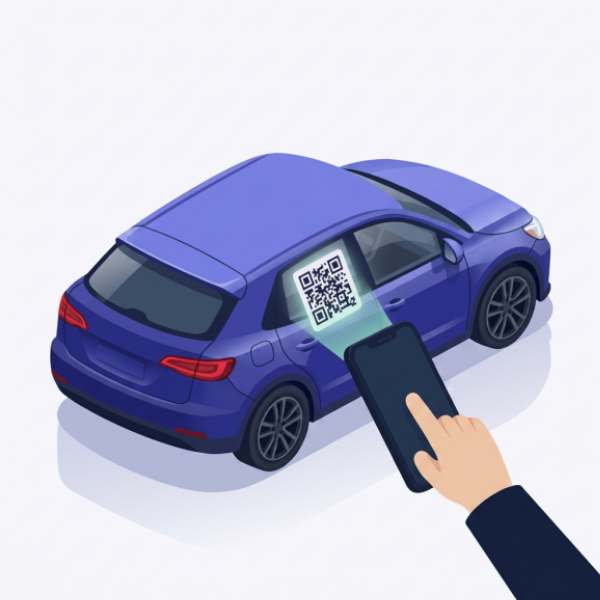
Scan the QR
Point your camera at the label on the vehicle. No app install is needed.
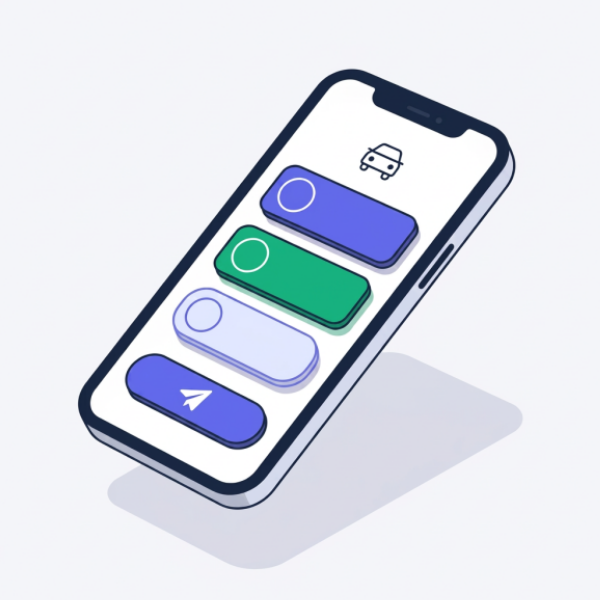
Pick the alert
Choose the right preset alert. The flow stays short and controlled.
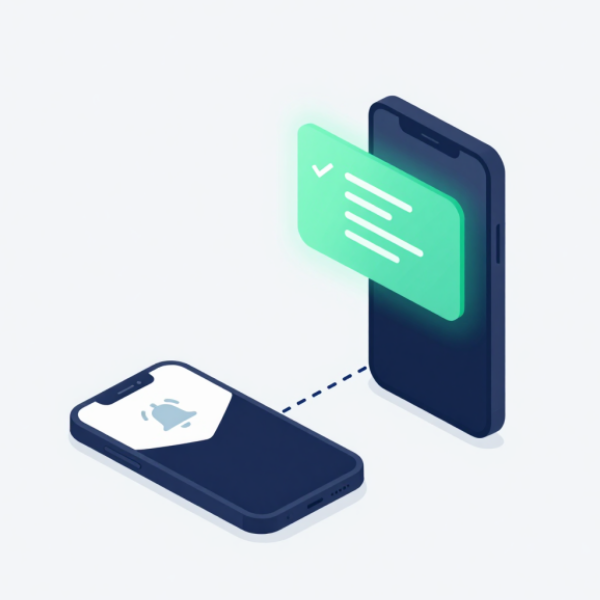
Reach the owner
The notification lands on the owner's phone within seconds.
Now the same story, told from the other side.
If you spotted a car that needs attention
Thirty seconds. No app. No account.
Maybe the headlights are on. Maybe the car is blocking your exit. You don't know who owns it and you shouldn't have to. Here's what happens when you scan.
Step 1
Open your phone camera and point it at the sticker
Every modern phone (iPhone, Android) recognises a QR code from the camera app. No CarQR install required, no sign-up, no email. The QR opens a webpage in your browser.
Step 2
Pick one of the ready-made alerts
You'll see a short list, "Window may be open", "Lights are on", "Blocking an exit", and a few others. Tap the one that fits. There's no free-text chat with the owner; this keeps things safe for everyone.
Step 3
Quick security check
A small box at the bottom asks you to confirm you're human. Just follow the steps it shows.
Step 4
Send
Tap send. The car owner's phone gets a notification within seconds. You'll see a confirmation: "Your alert was delivered." If the owner has a short reply set up ("Thanks, on my way"), you'll see it here.
Step 5
Walk away knowing you helped
You did not see the owner's account details or address. A vehicle contact number appears only if the owner separately entered and explicitly consented to publish it.
If it's an emergency
CarQR is for everyday alerts, lights left on, a window open, a car in the way. For genuine emergencies (fire, injury, accident, theft in progress), please call your local emergency services first. We can't replace them and we don't try to.
What stays private no matter what
- Your account, sign-in and delivery number is never shown automatically; only a separately entered vehicle contact number may appear with your explicit consent.
- Your name, email, and home address never appear in alerts.
- The QR only contains a public link, no IDs that could identify you.
- Notifications carry no personal data, even on a locked screen.
- Scanner IPs are hashed before they're stored; the raw value never lands in our database.